
How I Reactivated $200K in Lost Pipeline Using Claude + Gmail
All right, y'all, let's dive in. So, here's how we reactivated 200k in lead pipeline using Claude and Gmail. Let's dive into it. So, as you know, most agencies are probably sitting on 200 to 500k in a pipeline they've completely written off. Closed, lost, you follow up later, you never end up following up. But, no one talks about the fact that these people already know you.
They've talked to you, you set up a rapport. They already said yes once, and with the right system, you can get them back into the mix. You know what I mean? So, I think the best way to say this is, I'm John. I'm the founder of 5Four. We're a web design and branding agency, and we lean heavily on systems to run lean without burning out.

And so, today I'm going to walk you through our AI-powered re-engagement system. This is built specifically for a lost and stalled prospects. People who had calls with you, saw your proposal, went quiet. I'm going to set up another video for prospects or your existing clients, how to reactivate them and get them engaged in other projects. But, I'm going to drop this free tracker. This is actually in our weekly SOP. I'm going to go through it here so you can grab what you need here. But, if you don't want to do that, you just want to grab this sheet with the prompts and everything that you need, just let me know. You can join our weekly SOP. It's in the description below.
So, here's what's sitting in your CRM right now. You have lost, you have closed clients. You have a proposal sent, no response. These aren't random contacts. These are people that you've had a conversation with, you talked to, they just didn't work out. So, here's the exact breakdown of what you need. So, stage one is the export. You're going to pull your lost or stalled deals from your CRM as a spreadsheet. You have to at least be tracking that. Your leads, your lost leads, kind of last conversations. It's okay if you don't have everything cuz the majority of the additional info can be pulled from your Gmail. We'll talk a little bit about that later.

Stage two is research. Claude connects to your Gmail, searches your Gmail for the last conversation you had with that prospect. This piece is crucial because it's going to make the emails very, very personal in that regard to folks. Stage three is going to be review. So, you spend 20 to 30 minutes going through the output and marking those accordingly. So, here's one with dummy data. You're going to literally go through this and say contact yes or no. This is really the only work you'll do. So, think of this like before this would take you weeks to set up, I set this whole process up in like an hour and a half. And then I was able to do this other piece in 15 minutes and I reached out to like 200+ prospects, which was great.
And then Claude is going to write stage four, write and send your personalized emails. I say you should do five emails per day. You don't want to over run your inbox or mess up your email address as well. So, first thing you want to do is let's go through the process. In regards to Claude, you need Claude Pro for this. The free tier doesn't include the Gmail integration, so you're going to have to have that. You're going to have in regards to Gmail connectors, you're just going to go to when the Claude, you're going to go to settings and you're going to go to connectors. I don't want to go into mine. I don't want to show you guys all this info we've got on the back end.
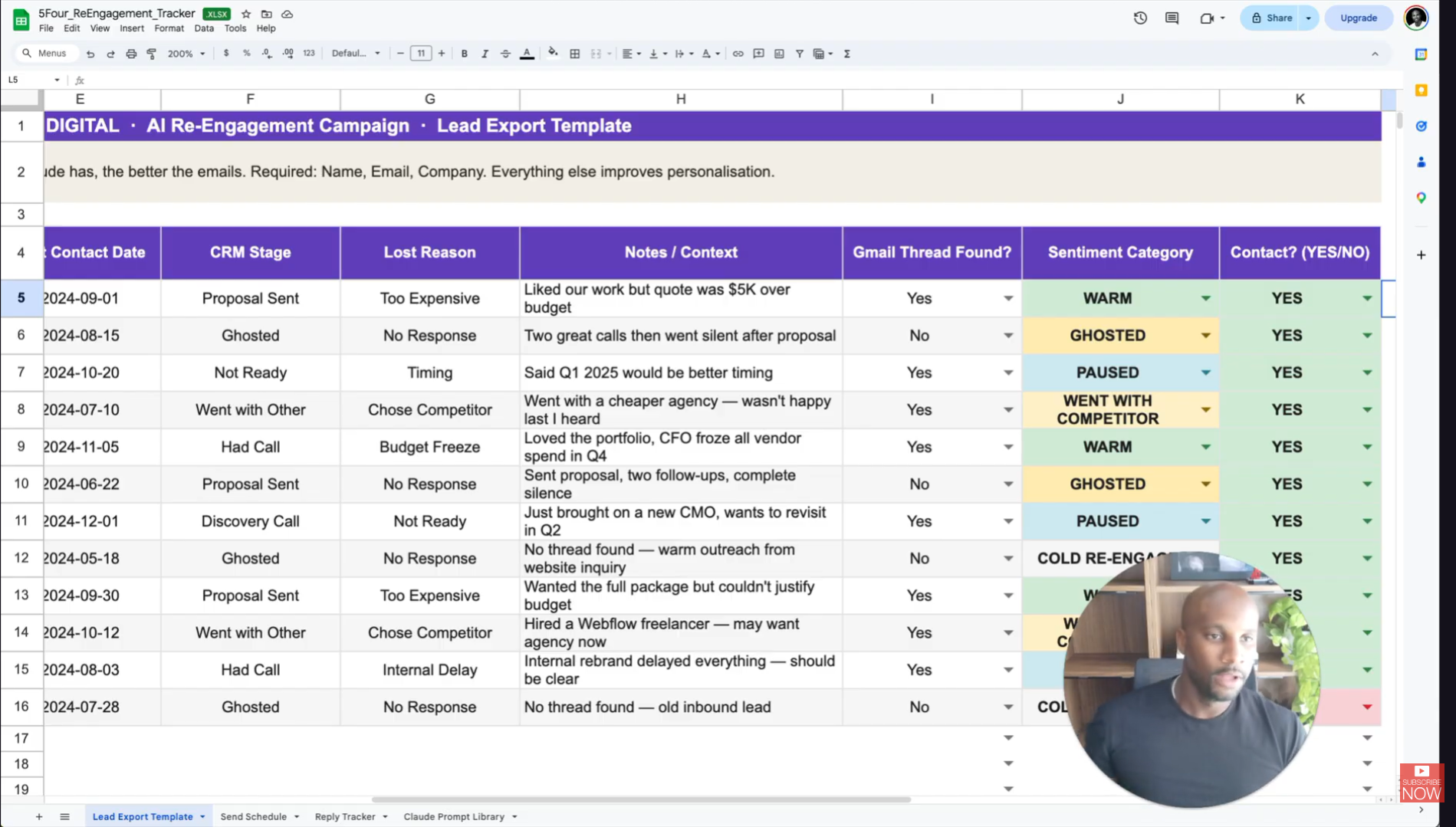
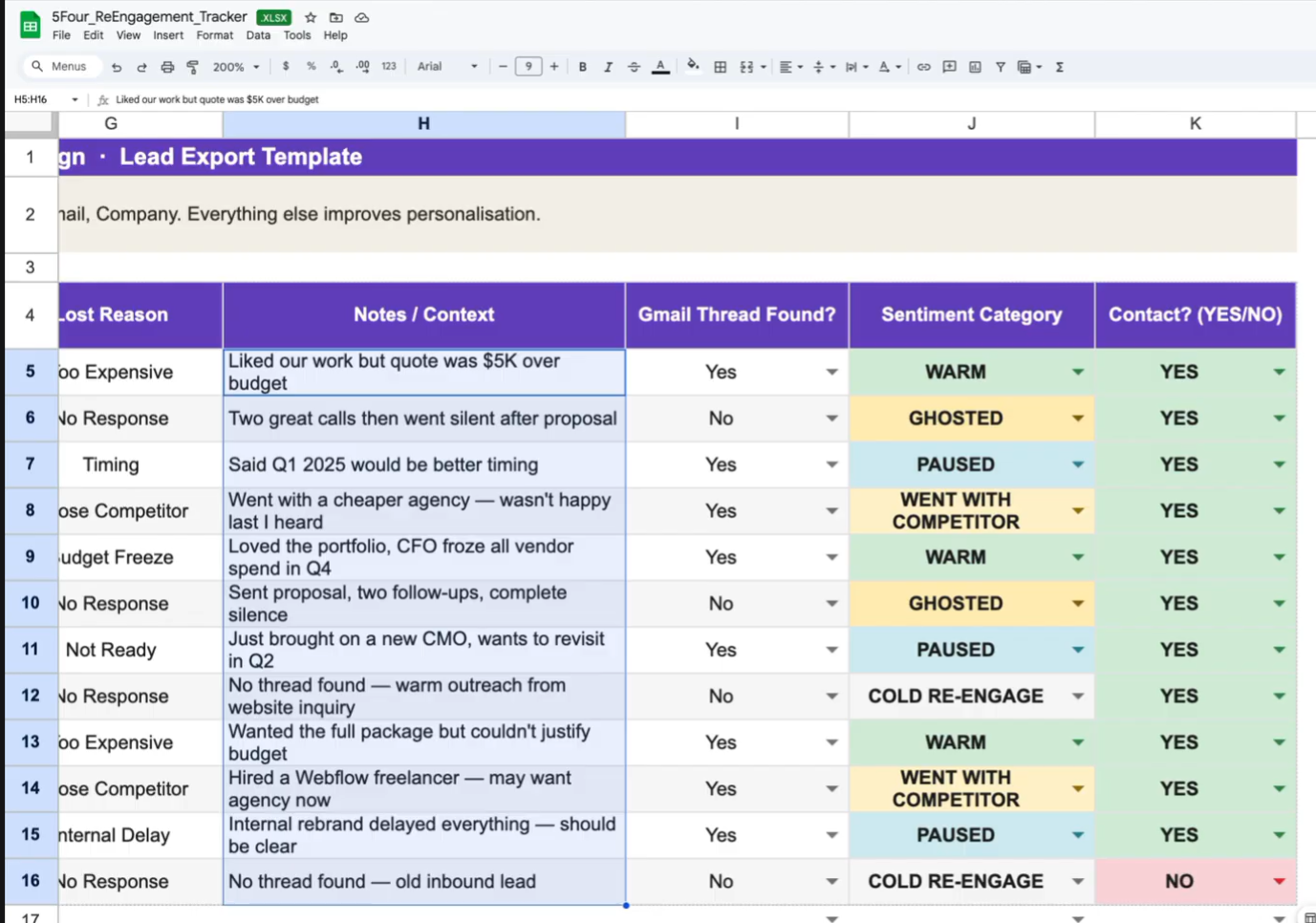
And then you're going to want to go ahead and export your CRM. In the CRM, you really need name, email, company, last contact date, and any notes or lost reasons you have. And then you also want to give it access to your case studies. Or at least five to 10 case study URLs sorted by industry, that way Claude can match those to specific prospects that you're going to talk to. Now, the first thing here on this piece is you're going to prepare your lead export. So, here's like an example. You can see the color coding in regards to like warm, ghosted, paused. What Claude is going to do is, let me go back here. When you set up that connector, now it can scrape all of your Gmails, right?
So, when Claude is in there, it's going to be able to scrape all of your data, all your information as well. Now, when it exports this data, you'll have the contact name, you'll have the email address, you'll have the company name, the deal value, the last time you contacted them, you'll have some notes that'll pull from your email conversation, and then you can go here to contact yes or no. This is important because whatever you put here, it's going to develop the drafts in your Google account.
And then the next step is you've already connected Claude through the platform. You want to make sure that it's enabled. You want to make sure that all the toggles are enabled as well. So, you go into settings, connectors, Gmail, you're going to click connect and sign in with your dedicated sending account, not your main inbox, whatever you're using for that sending out. And then Claude only connects to one Gmail at a time, so you can't use multiple. So, you can use this as your sending drafts. And if you ever need to search or switch out your boxes, you can as well.
Now, the next thing you're going to do is and I'll show you the prompt library here. Here's where you want to start. This is where you start to re-engage your lost leads. And then when you're writing the re-engagement email, this is what you want to do. Three to five sentences max, reference the Gmail contacts when available. This is what you're telling Claude once it has the lead data and it's scraped your Gmail account. So, it knows the conversations you've had. Then you want it to include case studies that are relevant, right? That's why it's good to have a good amount of case studies on your site because then you can pull relevant projects there as well.
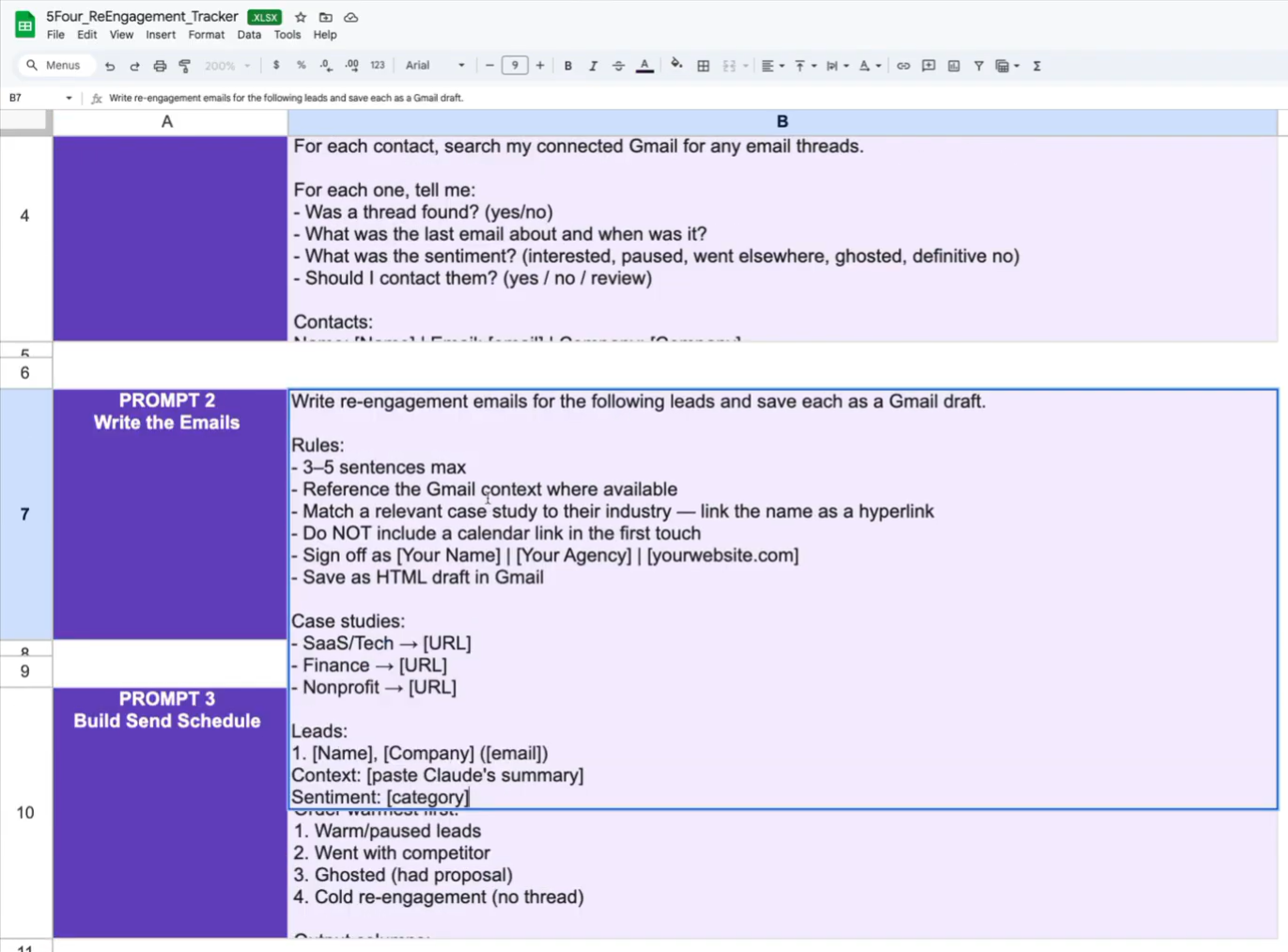
Then you're going to do the human review of going through the lead export template, make sure all of this data is ready to go. Take 20 to 30 minutes and just click yes or no if you want drafts created for that specific individual. And then you're going to generate the emails. So, when you generate the emails, this is the prompt that I used. Once that's generated, they're all going to be drafts in your inbox. At that point, you can set up a send schedule. So, essentially, Claude will write your emails. Your Gmail drafts folder is going to fill up on your Gmail in real time.
You can open a few drafts to check the tone, check the links, make sure the case study links work. You want to check the email references, the right context from the original conversation. I did it myself, y'all, and it was on point. Like, Claude does not play games. then, you want to build your send schedule. You're going to copy prompt three. This is pretty much what you got to do. And then, Claude will build a full day-by-day schedule, five per day, warmest leads first, all the way through. It'll get all your drafts ready to rock. Then, you want to send schedule tab in the Excel tracker. So, here's a send schedule. You're going to see this. Let's say this lead is ready to go.
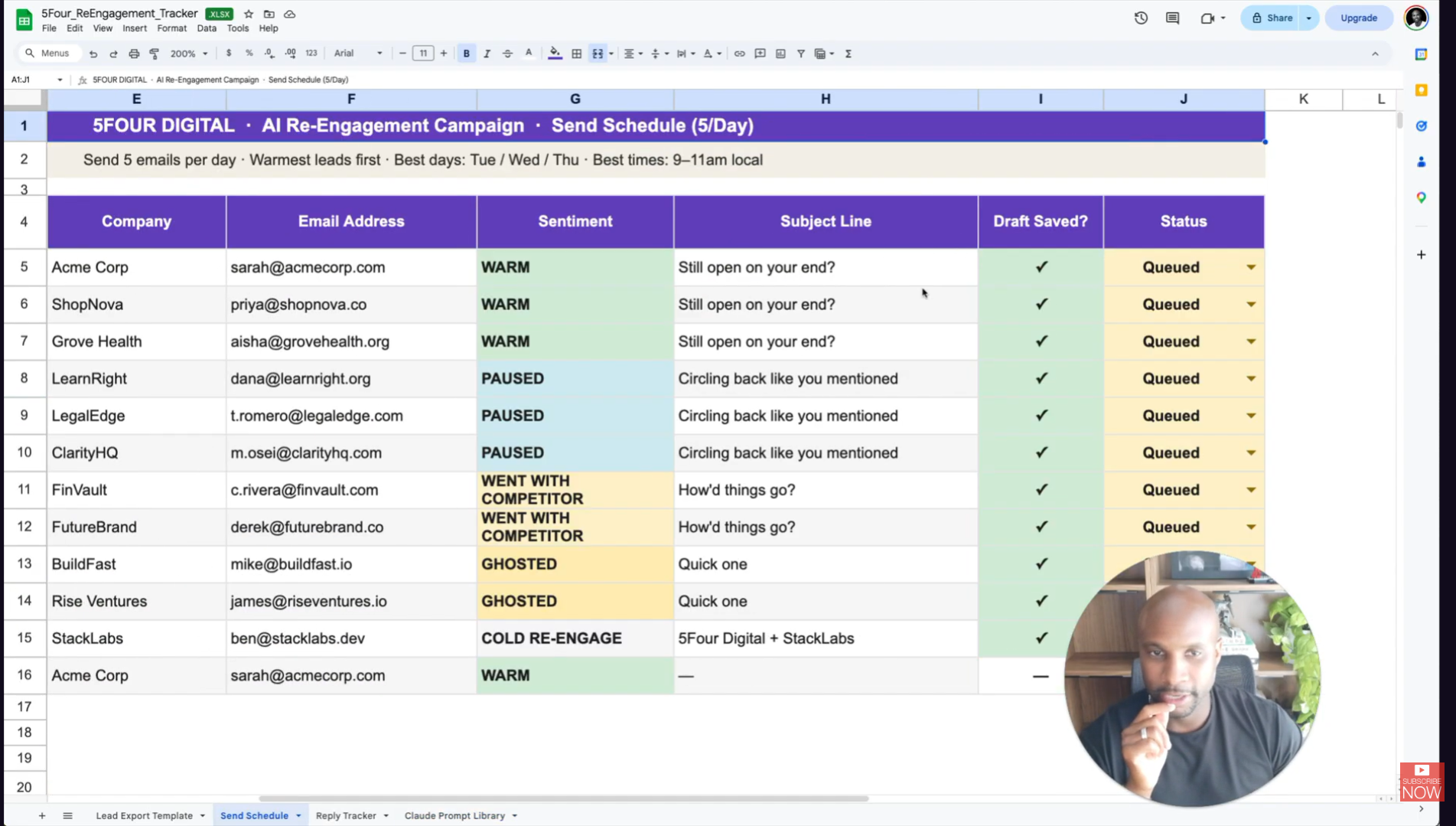
You can say the status, and you can say, basically, where they're at. Again, I know this is additional work into it managing a CRM, but trust me, y'all, these are warm people that you can close. Even if you send 50 of these and you close five, the ratio is going to go crazy. So, make sure you're tracking it accordingly here. The stats block at the bottom calculates your reply rate as well. So, it'll calculate that data automatically. This is all done through formula, all set up automated through Claude as well. The best days to send are really Tuesday, Wednesday, Thursday, 9:00 to 11:00 local time. Avoid Friday cuz people are usually checked out by then.
Then, you want to track every reply. That's the next step. Tab three is the reply tracker, as you can see here. This is going to log every response, send date, reply date, status, whether you sent the Calendly link, all that goodness. And then, around, I would say week four or five, you're going to be back to your send schedule and identify everyone who still hasn't replied. That's when you want to check everything and make sure you're good to go. And then the last piece, what to really realistically expect is warm and paused leads have a like 15 to 25% reply rate. Ghosted leads have 5 to 10%. Cold re-engagements 2 to 5%. So on 100 leads, expect 8 to 15 replies. At a 15k average deal value, that's 120k to 225k in pipeline reactivation here.
So again y'all, structure creates freedom. This is what this looks like in practice. I'm living proof that we've done this. We actually just closed a client yesterday from this exact process. So check it out. You can get everything you need below. Join weekly SOP to get content like this every single week. I hope this was helpful.
Whenever you're ready, there are 3 ways I can help you:
WeeklySOP
A premium newsletter where I drop one fully-built SOP every week. These are real processes from inside my creative agency — made to help freelancers and agency owners delegate, document, and grow with confidence.
Grab the Borderless Book
Get my book, Borderless: How to Hire, Train and Grow a Design and Web Development Agency with Worldwide Talent. It’s the ultimate guide for web designers, brand designers, entrepreneurs, and business owners looking to tap into the vast pool of global talent.
Scale your agency.
Start here.
I will never spam or sell your info. Ever.
.jpg)

